
How to share a Claude skill with someone
There are two ways to share a Claude skill. If the other person is in your Team or Enterprise workspace, open Customize, then Skills, click the three dots next to the skill, choose Share, and add them. For anyone else, download the skill from its page and send them the file; they add it to their own Claude with Add, then Upload skill.

By Melisa, founder of Claude & Coffee ·
What is a skill?
A skill is a saved set of instructions that teaches Claude how to do one job your way, like writing quotes in your format or answering a customer the way you would. Once a skill is turned on, Claude uses it whenever the job comes up. Your skills live under Customize, then Skills.
Which way should I use?
It depends on where the other person's Claude account lives.
- Same Team or Enterprise workspace as you: use the Share button. They get the skill in their own list, and your later changes reach them automatically.
- A different workspace, or a Free, Pro, or Max account: download the skill and send the file. They upload it to their own account.
How do I share a skill with someone in my workspace?
This works on Team and Enterprise plans, for skills you created.
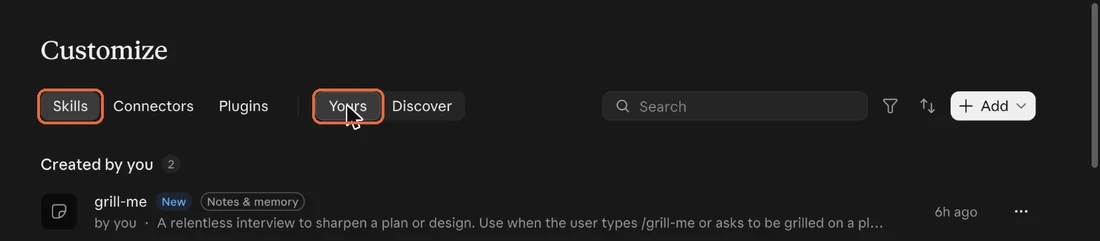
Open Customize in the left sidebar, choose Skills, then Yours.
 (open full size)
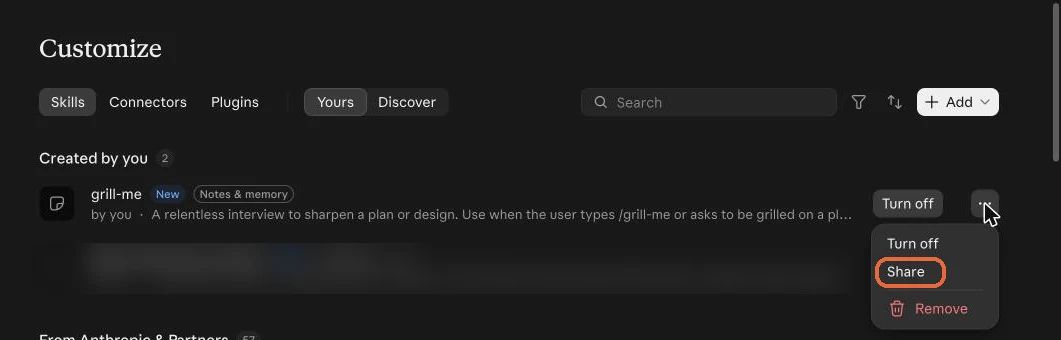
Click the three dots at the right end of the skill's row, then choose Share.
 (open full size)
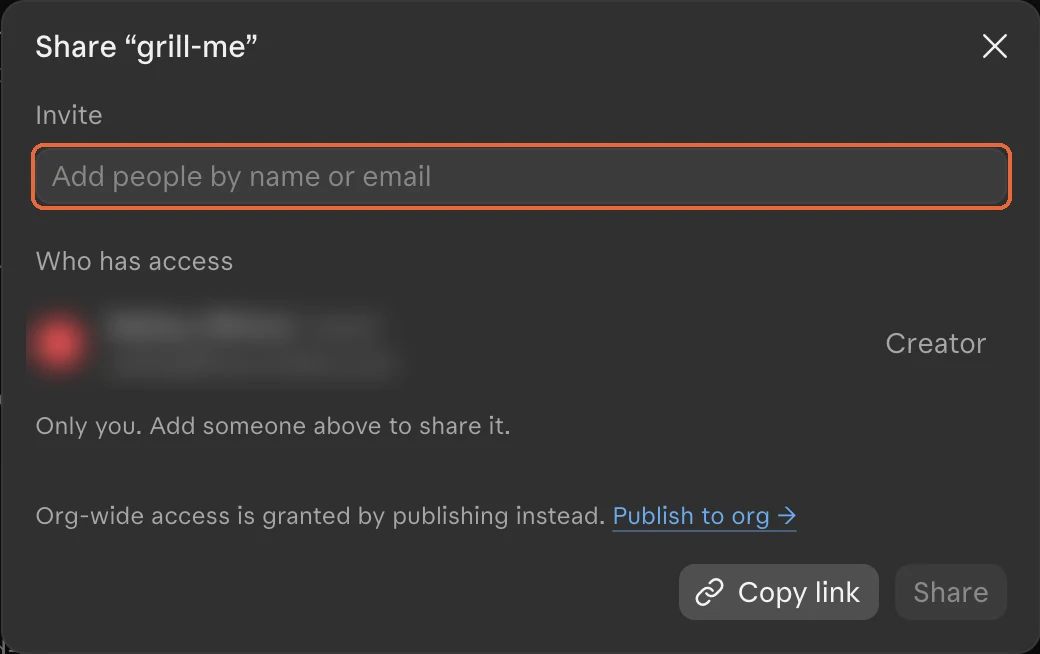
Another skill in the list is blurred. In the Invite box, type the person's name or email and pick them from the list.
 (open full size)
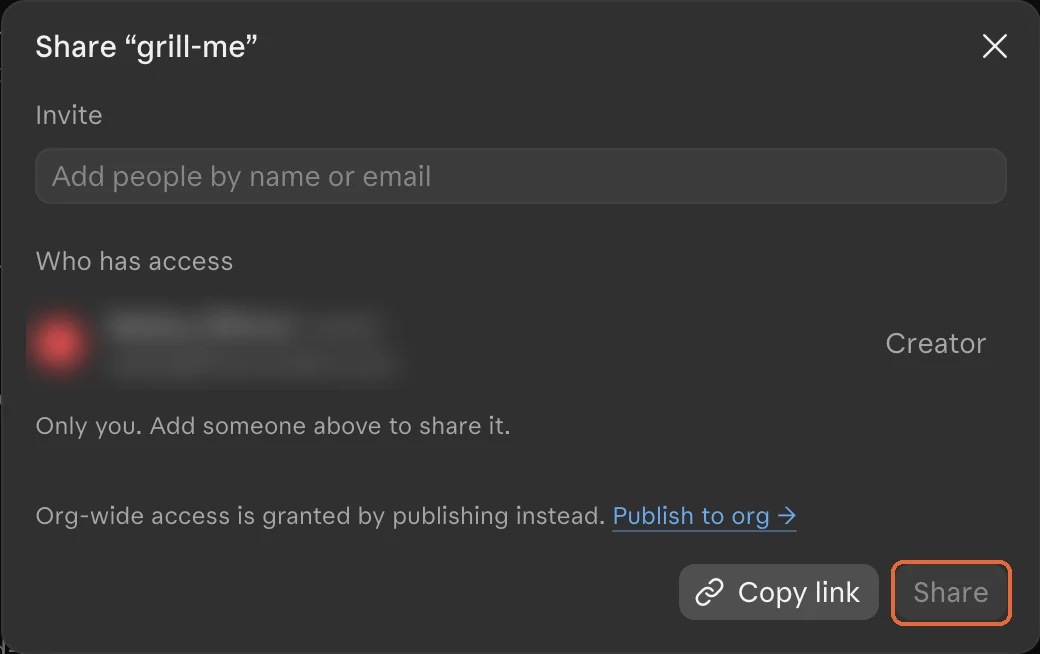
Account details are blurred. Click Share.
 (open full size)
The Share button stays gray until you add someone.
What if there is no Share option?
An Owner of your workspace has to allow skill sharing first. Ask them to open Organization settings, then Plugins & skills, and turn sharing on under the Policy tab. If your workspace uses custom roles, your role also needs permission to share skills.
What does the other person see?
The skill shows up in their Skills list under Shared with you, with your name on it. It stays off until they turn it on. They can use it but they can't change it.
When you save a change to the skill, everyone you shared it with gets the new version the next time they use it.
How do I give a skill to my whole team?
Open the skill and click Publish to org. That puts it in your workspace's skill library, where anyone on the team can install it. Depending on how your workspace is set up, an Owner may have to approve it first.
How do I share a skill with someone outside my workspace?
Send them a copy. This is also the way to share on a Free, Pro, or Max plan, where each person adds skills to their own account.
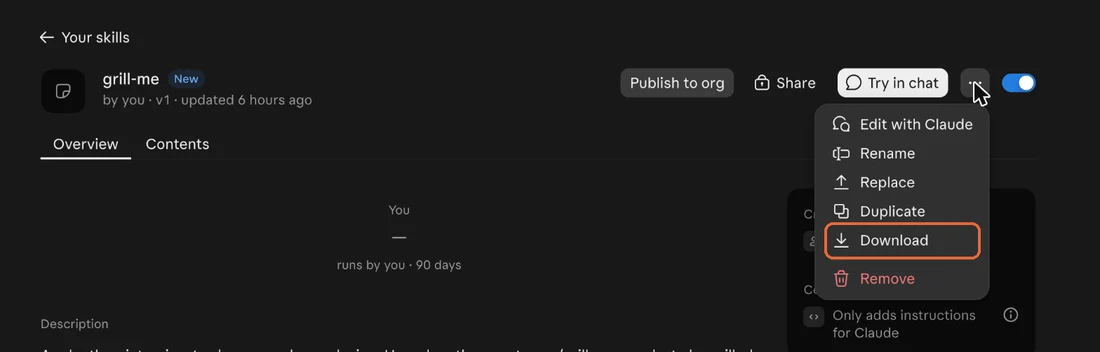
Open Customize, choose Skills, and click the skill's name to open its page.
Click the three dots next to the on and off switch, then choose Download.
 (open full size)
Send them the downloaded file by email or however you normally share files.
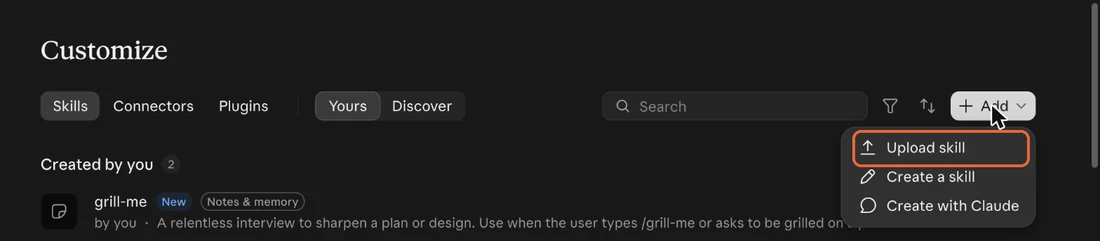
On their side, they open Customize, choose Skills, click Add, choose Upload skill, and pick the file.
 (open full size)
What should the other person know about a copy?
A copy is theirs. It sits in their own account, so changes you make later won't reach them; send a new file when you update it.
To upload a skill, their Claude needs file creation turned on. That setting is under Settings, then Capabilities.
How do I stop sharing a skill?
Open the same Share box. Everyone the skill is shared with is listed under Who has access, and you can remove someone at any time. If a person leaves your workspace, their access ends on its own.
A copy you sent as a file can't be taken back, so only send one to people you're happy to have it.
Is it safe to install a skill someone sends me?
Only install skills from people you trust. A skill can carry instructions and code, so treat one from a stranger the way you would treat a program from a stranger. Open it and read what it does before you turn it on, even when it comes from a colleague.
Where do these steps come from?
We checked the rules against two of Anthropic's help articles on November 11, 2026: Use skills in Claude (support.claude.com/en/articles/12512180-use-skills-in-claude) and Provisioning and managing skills for your organization (support.claude.com/en/articles/13119606). The screenshots were taken in Claude the same day, in a team workspace, and the button names here are the ones on screen.
One thing we have not tested ourselves is sending a downloaded skill to a different account from start to finish. Anthropic's page says an uploaded skill has to be a ZIP file with a SKILL.md file inside; if an upload is refused, that is the first thing to check.
Download one of your own skills, so you know where the file comes from before someone asks for it.
Open Customize, choose Skills, then Yours.
Click a skill you made to open its page.
Click the three dots next to the on and off switch and choose Download.
The skill's file is in your Downloads folder, ready to send.
Keep reading
Learning Center
Plain-English guides to using Claude in your small business, from Claude & Coffee in Round Rock, TX.
Read moreAll services
AI automation, AI agents, CRM setup, websites and AI search, Claude training, and ongoing support for small-business owners. Fixed price, quoted up front.
Read moreQuestions owners ask
Straight answers to what small-business owners ask before booking: what an AI agent is, pricing, timelines, data safety, Claude vs ChatGPT, and working outside Texas.
Read moreGet your hours back.
Book a free 30-minute AI Growth Mapping Call. We'll map where AI saves you the most time this quarter. No pitch, no jargon.