
How to share a Claude artifact with someone
To share a Claude artifact, open it, click Share, set General access to Anyone with the link, then copy the link and send it. Most artifacts open for the other person without a Claude account. Sharing by link needs a paid Claude plan; on the free plan, artifacts made in a chat have a Publish button instead.

By Melisa, founder of Claude & Coffee ·
What is an artifact?
An artifact is the finished thing Claude builds for you that opens beside the chat: a document, a one-page website, a calculator, a checklist, a slide deck. It has its own link, so you can send the thing itself instead of a screenshot or a copy and paste.
How do I share an artifact by link?
This is the quickest way, and the one to use when the other person doesn't use Claude. Do it on the Claude website or the desktop app.
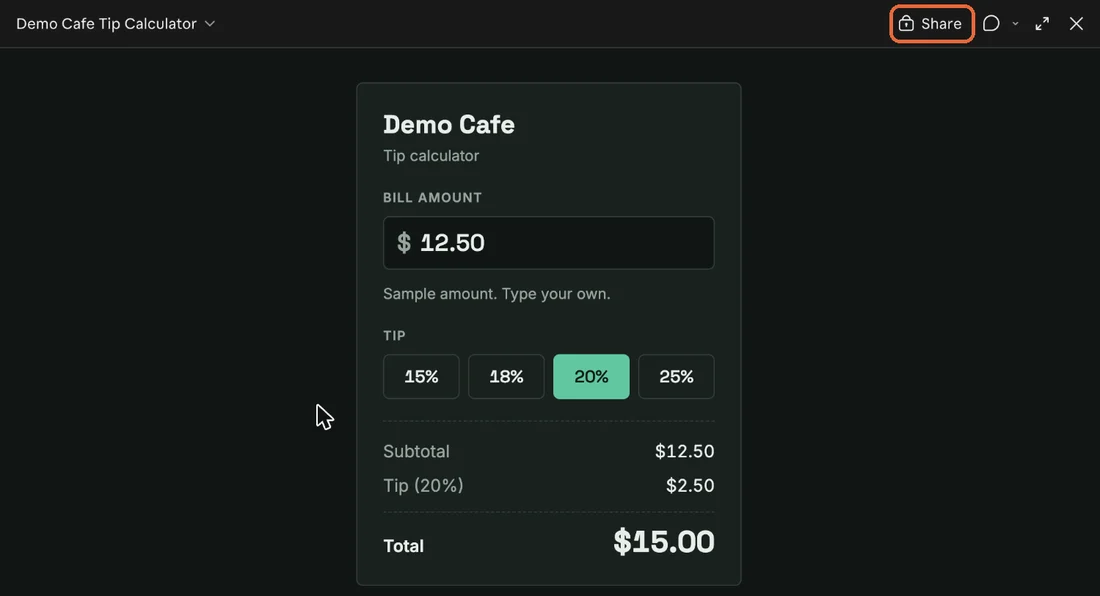
Open the artifact.
Click Share, at the top right of the artifact.
 (open full size)
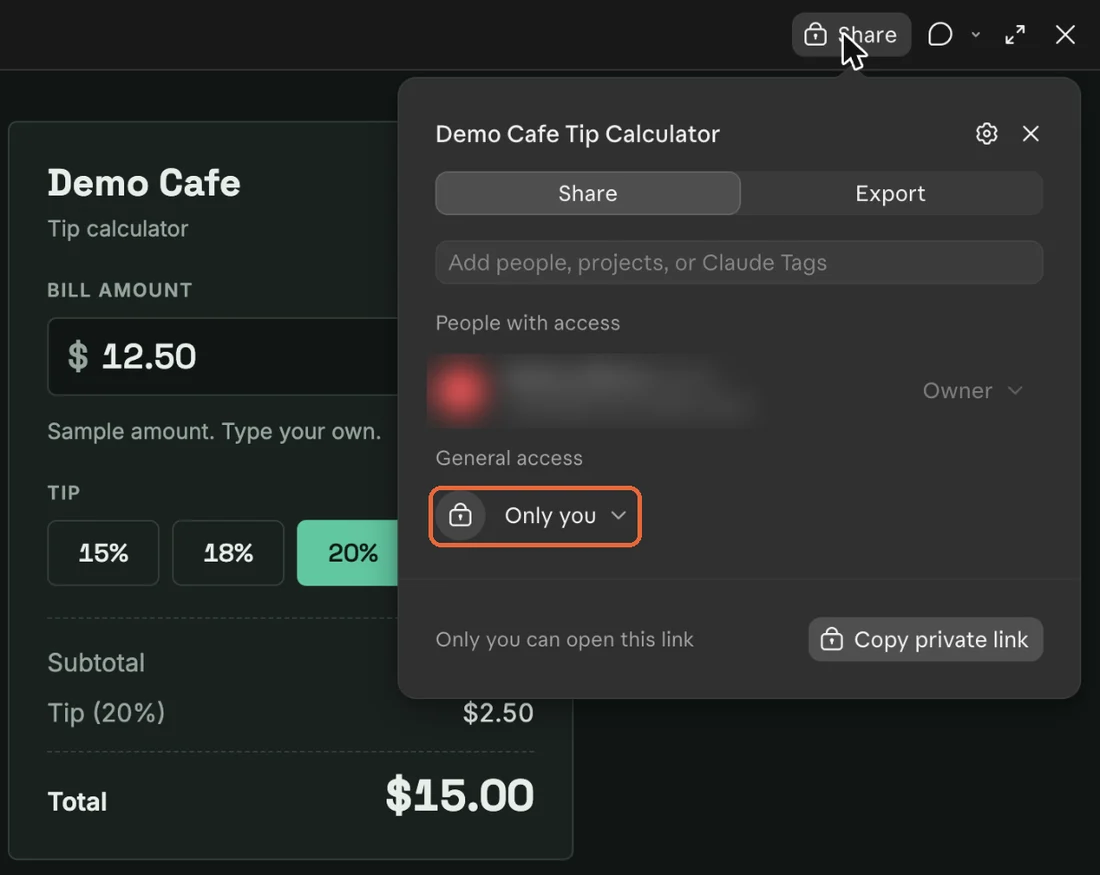
Under General access, open the dropdown and choose Anyone with the link.
 (open full size)
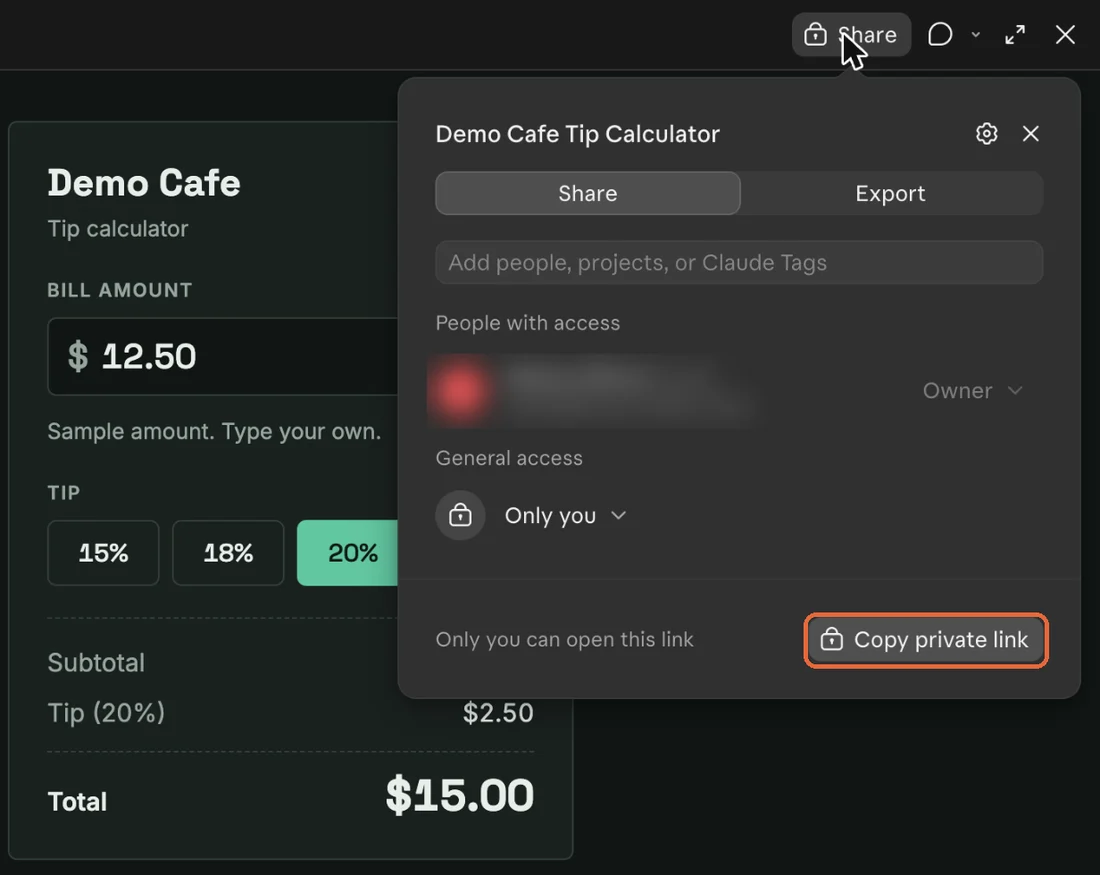
Screenshot from a team workspace, with the account details blurred. The menu is laid out the same way on Pro and Max. Click the copy link button at the bottom of the menu, then send the link by text, email, or however you normally would.
 (open full size)
The button says Copy private link while the artifact is still private.
Does the other person need a Claude account?
Usually not. With Anyone with the link, most artifacts open without a Claude account or a sign-in.
There are two exceptions. Documents made with Claude Docs open only for people signed in to Claude, and they can only view them. And if an artifact uses Claude or a connected app to do its job, those parts won't work for someone who isn't signed in; they'll see the artifact, but the live pieces stay off.
How do I share with one specific person?
Invite them by email. In the Share menu, type their address in the field at the top, choose Invite, pick their access, and click Invite. There are three access levels: Can view lets them open it, Commenter lets them add comments, and Can edit lets them make changes.
The catch: the person needs a Claude account under that exact email address, and Claude won't tell you whether they have one. If you aren't sure, send a link instead. An invitation that nobody accepts expires after 30 days.
What if I see Publish instead of Share?
That means the artifact was made the older way, inside a chat. On the Free, Pro, Max, and Ultra plans, click Publish, then copy the public link and send it. Anyone with that link can view and use the artifact without a Claude account. Publishing also adds it to Artifacts in your sidebar, so you can find it again later.
One warning before you unpublish: it is permanent. You can't publish that same artifact again, and anything it had saved is deleted. You would have to make a new one.
What changes on a Team or Enterprise plan?
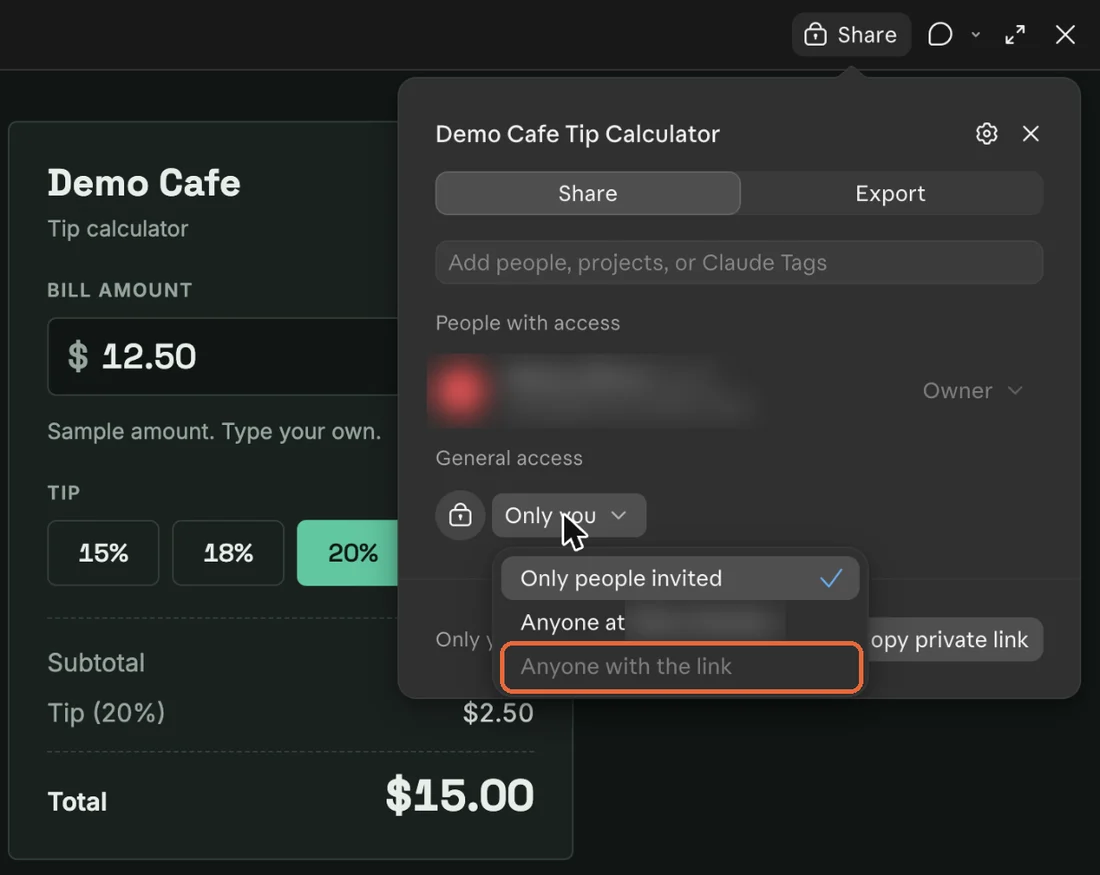
Artifacts stay inside your organization unless an Owner allows otherwise. Your choices under General access are Only people invited, Anyone at your organization, and Anyone with the link.
If Anyone with the link is grayed out, an Owner has to turn on external sharing or allow that one artifact. Ask them. And if the artifact was made in a chat, the people you share it with can also get the attachments and files from that chat, so check for anything sensitive first.
 (open full size)
How do I stop sharing?
Open the artifact, click Share, and set General access back to Only you. On Team and Enterprise the setting is Only people invited.
On Pro, Max, and Ultra, people you invited by email keep their access after you do that. To remove one of them, open their access level and choose Remove. Deleting the artifact removes access for everyone.
Can I share from my phone?
Not yet. You can't change sharing settings in the Claude apps for iPhone or Android. Use Claude on the web or the desktop app, then send the link from wherever you like.
What should I check before I send it?
A link set to Anyone with the link works for whoever ends up holding it, including people it gets forwarded to. Three quick checks:
- Read the artifact once as if you were the customer. Take out private numbers, names, and notes to yourself.
- If the artifact saves what people type into it, everyone who opens it may be able to see that information. Don't use it to collect anything sensitive.
- If someone only needs to read it, give them Can view, not Can edit.
Where do these steps come from?
We checked every step against Anthropic's help article, Share artifacts, on November 11, 2026: support.claude.com/en/articles/9547008-share-artifacts. The screenshots were taken in Claude the same day. That help page calls the sharing setting Who has access; on screen it reads General access, so that is the name we use here. Claude changes often, so if a button on your screen has a different name, that page will have the current one.
Share an artifact with yourself before you send one to a customer.
Open any artifact you've made in Claude.
Click Share and set General access to Anyone with the link.
Copy the link and paste it into a private or incognito browser window.
The artifact opens in that window without asking you to sign in.
Keep reading
Learning Center
Plain-English guides to using Claude in your small business, from Claude & Coffee in Round Rock, TX.
Read moreAll services
AI automation, AI agents, CRM setup, websites and AI search, Claude training, and ongoing support for small-business owners. Fixed price, quoted up front.
Read moreQuestions owners ask
Straight answers to what small-business owners ask before booking: what an AI agent is, pricing, timelines, data safety, Claude vs ChatGPT, and working outside Texas.
Read moreGet your hours back.
Book a free 30-minute AI Growth Mapping Call. We'll map where AI saves you the most time this quarter. No pitch, no jargon.